Control and Play the way you want

Use what you have. Add what's missing.

Choose your platform · No credit card

Keep the controls that work for you

Continue using your controller, keyboard, mouse, switches, joystick, or adaptive devices.

Add the inputs you prefer

Use a webcam for head movement and face gestures, or a microphone for voice commands.

Play through standard game controls

Use PC games that accept controller, keyboard, or mouse input. Console play uses supported Remote Play or adapter setups.

PlayAbility turning head movement into game controls during gameplay

What Our Users Say

"I can't believe seeing all features included in Playability and the price for unlimited licence. this is a great change for all gamers with disabilities."

DC

David C

"Thanks to Playability, the hope of playing video games again without my hands has become a reality. Its creator is dynamic and accessible via Discord, don't hesitate anymore!"

Michael KLAUSZ

Michael KLAUSZ

"Playability is an amazing accessibility tool. There are so many different ways you can use it. It has helped remove barriers in many games and apps and I would highly recommend it."

PU

Playability user

"An incredible software that helps many people with disabilities to be able to play! Thank you to Valentin for this invention!"

WL

WECXSTEEN LUCAS

"I can play PlayStation 5 with my eyes"

J

Julien

"A superb experience with great playability. The smooth and functional gameplay, along with all the updates, makes for an excellent experience. A huge thank you for this application, which finally makes video games accessible to everyone. Thank you, Valentin."

PAPeen
PAPeen

Streamer

"very good"

G

gz

"PlayAbility is a very useful program because with its facial and voice recognition AI, it allows me to configure multiple actions in games that I couldn't use before. It's also very practical to be able to configure it on an Xbox controller, as Windows recognizes this type of peripheral perfectly (being from Microsoft). But that's not all, it allows you to configure keyboard keys, individually and combined, configure keyboard for Xbox buttons, Xbox buttons to activate keyboard keys, etc. And it still has more features that I don't master yet and that escape any assessment I can make. As I said, PlayAbility is a very complete program that opens up the universe of video games (on PC and consoles, it's important to remember) to people with disabilities, like me."

Santiago Angulo

Santiago Angulo

"Playability is essential software for a disabled gamer like me. Since I started using Playability, I play many more games."

MyJere

MyJere

streameur

"Very helpful adaptive software, allows for elimination of hand movements that might be painful or otherwise unpleasant. Support via their Discord is very forthcoming. Happy to continue using it and replace even more inputs with it."

AV

A. V.

"My left arm is paralyzed, I've been searching for a solution like this for years, it's amazing ❤️❤️❤️"

Thomas

Thomas

Handigamer

"Everything is taken into account to be able to interact with the game... this invention is crazy"

Kayane

Kayane

Pro gamer

"I can play FIFA again, using my face to score and pass! The software is really simple to use"

"Thanks to PlayAbility, I got my first Top 1 in Fall Guys!"

Kvin

Kvin

Handigamer

"My arm is paralyzed and I can see so many possibilities! I couldn't find any solution before today, it's amazing! Thank you!"

xblade753

xblade753

Discord user

1 / 15

Keep the controls that work

Start with the inputs that are comfortable and reliable, then add controls for the remaining actions.

Keep

Controls and devices already in your setup

  • Controller

    Keep the sticks, triggers, and buttons that are comfortable to reach.

  • Keyboard and mouse

    Continue using the keys, clicks, and movement that already work.

  • Switches and joysticks

    Keep supported adaptive inputs assigned to the actions they handle well.

  • Xbox Adaptive Controller

    Add PlayAbility inputs to a supported Xbox Adaptive Controller setup.
Add

Head, face, voice, and on-screen inputs for selected actions

  • Head movement

    Add analog movement for steering, aiming, camera control, or cursor movement.

  • Facial gestures

    Turn a comfortable smile, eyebrow raise, blink, or mouth movement into an action.

  • Voice commands

    Use a word or short phrase for occasional actions such as reload or pause.

  • On-screen controls

    Add clickable buttons and virtual sticks through the PlayAbility overlay.

From movement to game control

Choose what you can use. PlayAbility maps it to the controls your game already understands.

What you use

Head movement
Facial gestures
Voice
Adaptive devices

PlayAbility

  • Map each input
  • Tune sensitivity
  • Combine devices

What the game sees

Gamepad
Mouse
Keyboard

Use what you can move

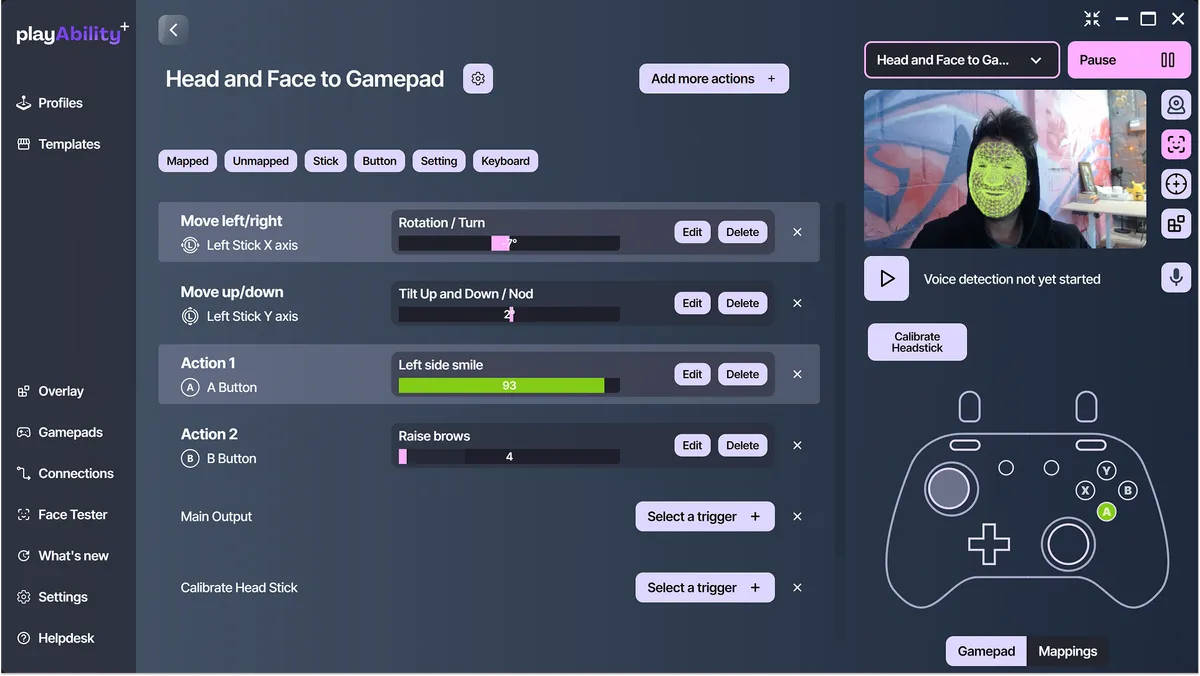
Turn your head to steer or aim, and use a smile or eyebrow raise as button presses.

PlayAbility lets these act as analog controls for precise steering and aiming. See the exact head-tracking and face-gesture settings.

Head movement controlling the mouse with PlayAbility

Map it to what the game expects

Map supported inputs, including face gestures, head movement, voice, mouse, keyboard, gamepad, or switches, to compatible gamepad, mouse, and keyboard outputs.

A smile can become a button. A head tilt can move an analog stick. A word can trigger an action.

Choose what works for each action, then adjust the mapping in your profile.

PlayAbility interface mapping inputs to game controls

Use PlayAbility on PC and consoles

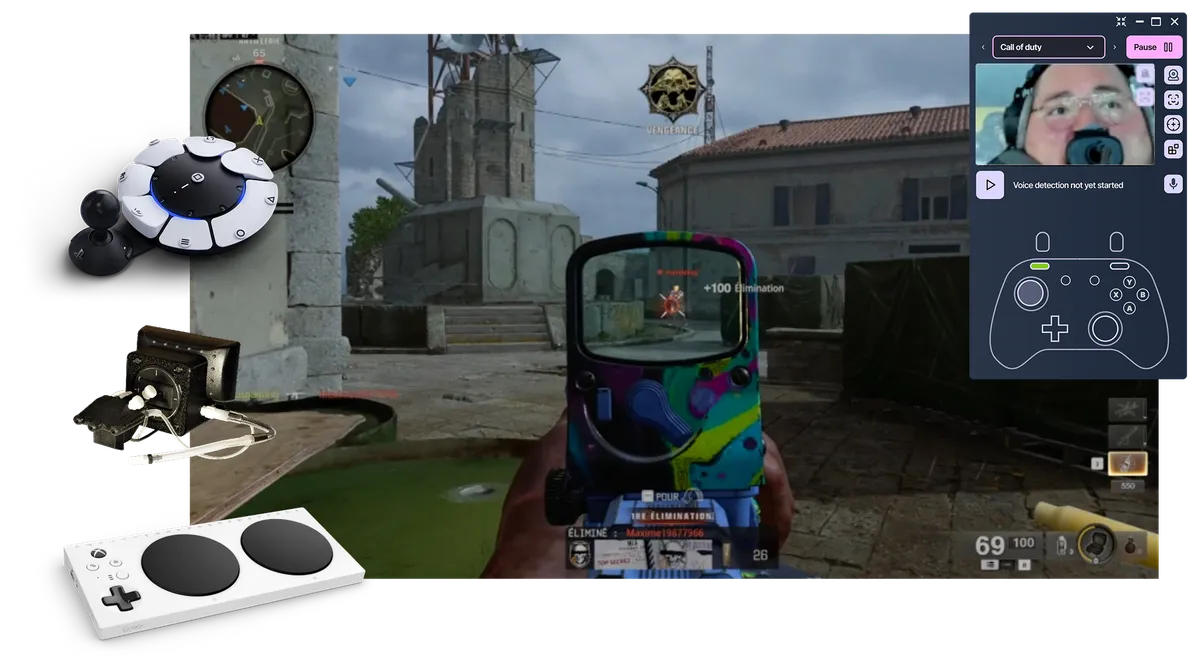
On Windows, PlayAbility creates virtual keyboard, mouse, and Xbox controller inputs for PC games that accept them.

For setup and compatibility, choose Windows PC, the SteamOS & Linux beta, the Mac beta, PlayStation, Xbox, or Nintendo Switch 1 & 2.

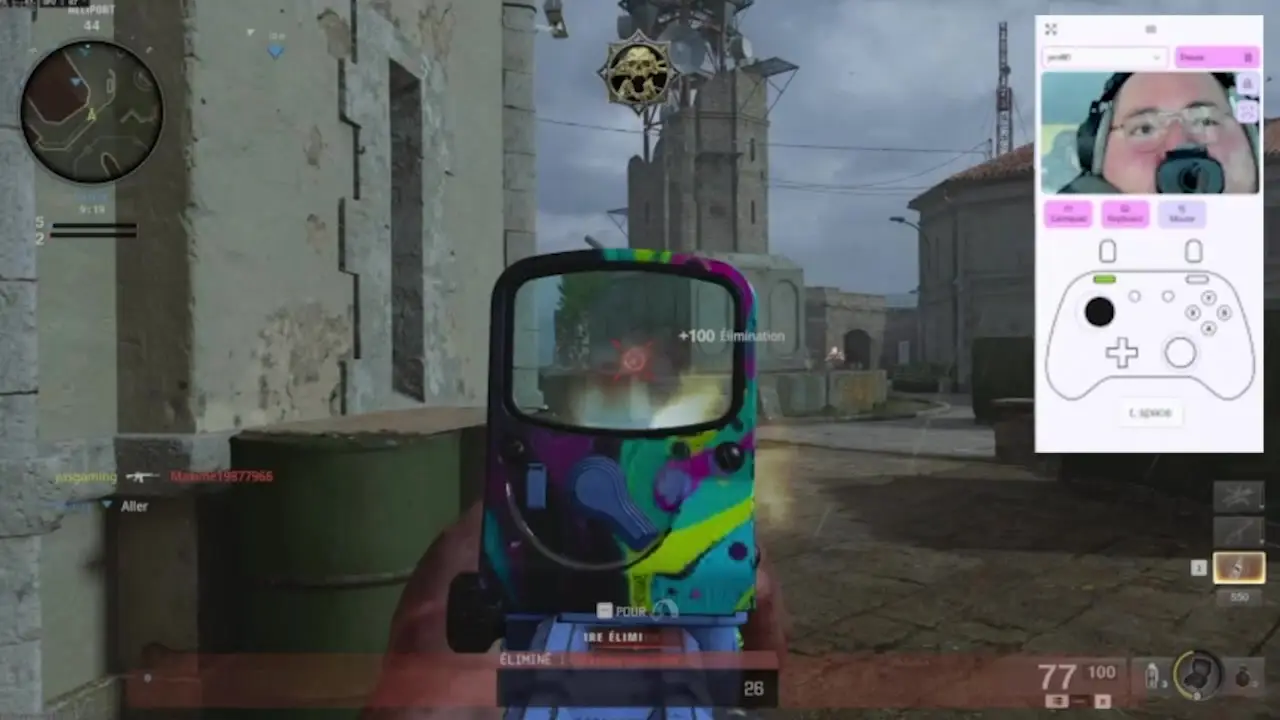
Call of Duty controlled with QuadStick and PlayAbility

Start free.
Upgrade when you’re ready.

Every control feature is free. Pro adds unlimited profiles, cloud sync, and automation.

Pay monthly, yearly, or once for life.

Pro

A setup for every game.

Keep your favorite controls ready to play.

  • Unlimited profiles for your games
  • Cloud sync across your personal PCs
  • Automatic profile switching

All future updates included

Compare Free and Pro
Choose how you pay

The same Pro features with every option.

30-day money-back guarantee

If Pro isn’t right for you, contact us within 30 days of purchase for a full refund.

Secure payment by Paddle

Free0 € forever

Every control feature, with one editable profile on one Windows PC.

No subscription. No credit card.

Download Free Edition

Compare Free and Pro

Compare Free and Pro
What’s included Free Pro
All control features Included Included
Standard profiles 1 Unlimited
Global Profile Not included Included
Personal Windows computers 1 active All
Cloud sync, backups & automation Not included Included
Publishing, all themes & beta access Not included Included
See all features

Every control feature, included

  • 1 editable standard profile
  • Use on 1 active Windows computer
  • Face, head, voice, keyboard, mouse, gamepad, and switch controls
  • Mobile controller, compatible receivers, OpenTrack, overlay, and safety tools
  • Browse and import community profiles; use local controls offline

Everything in Free, plus

  • Global Profile and unlimited standard profiles
  • Use, back up, restore, and sync across all your personal computers
  • Automatic profile switching, bulk import/export, and backup history
  • Community publishing, WebSocket/MCP automation, all themes, and beta access
  • All future updates included

Need the Pro Edition at work? Solo health professionals and occupational therapists can contact us for 50% off the Pro Edition. This offer does not apply to organizations or bulk orders.

Clinics, schools, or institutions looking to purchase multiple licenses: contact us for volume pricing.

Common Questions

Answers about setup, compatibility, privacy, and pricing

What is PlayAbility Adaptive Software?

PlayAbility Adaptive Software is an adaptive control tool for Windows 10 and 11. It maps supported inputs, including face gestures, head movement, voice, keyboard, mouse, gamepads and compatible adaptive devices, to standard gamepad, keyboard and mouse actions. Keep the controls and devices that already work for you, then add the inputs you need.

Do I need special hardware?

Not always. PlayAbility currently requires a Windows 10 or 11 PC. You need a webcam only for face or head tracking and a microphone only for voice commands. You can also keep using compatible keyboards, mice, gamepads and adaptive devices. Console setups may require Remote Play or a compatible adapter.

Can PlayAbility replace a mouse or keyboard for everyday computer use?

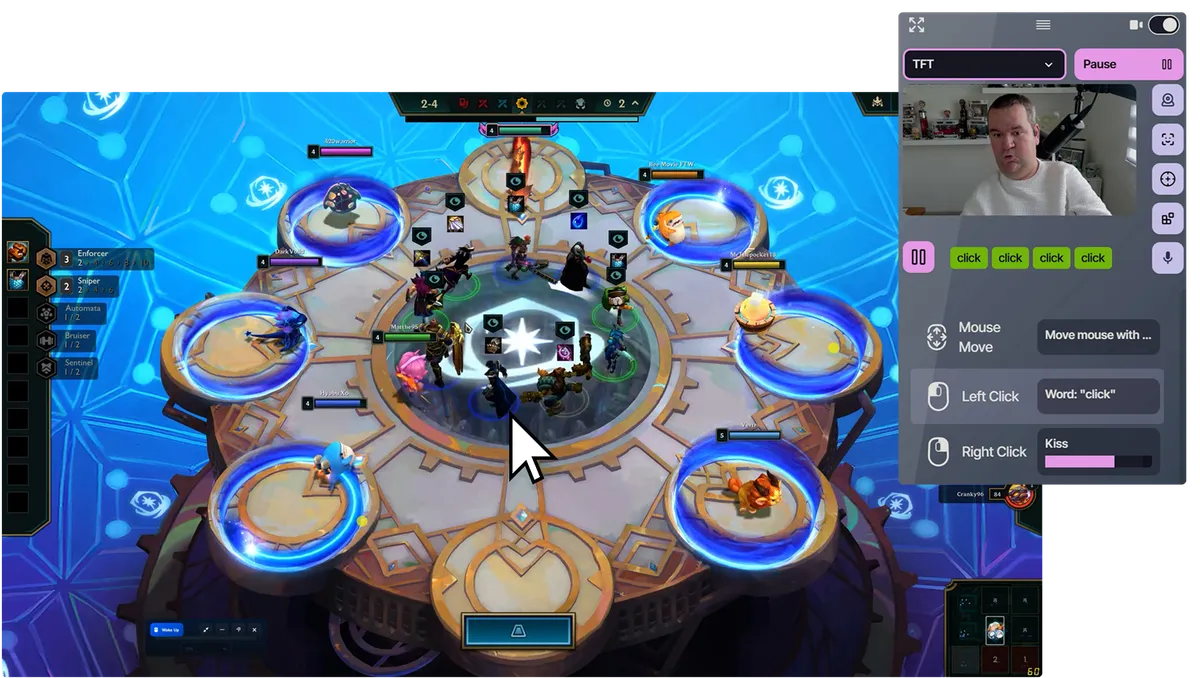
PlayAbility can send mouse and keyboard actions to compatible Windows applications. You can move the cursor with your head, click with face gestures, scroll, drag and drop, and trigger supported keyboard shortcuts. Use those controls alongside a physical mouse or keyboard, or as the primary input for the actions you have mapped.

Does it work with all games?

PlayAbility is designed for PC games and applications that accept standard controller, keyboard or mouse input, including titles distributed through Steam, Epic Games and Xbox Game Pass. Choose an output type the game supports and test the profile with that title. Individual games, launchers or input modes can still have compatibility or configuration restrictions.

Is PlayAbility Adaptive Software free?

Yes. The Free Edition includes all current control features, one customizable profile and use on one Windows computer, with no credit card or time limit. Pro is optional if you need unlimited profiles or use on more computers.

Can it replace a controller?

PlayAbility can be the primary controller input or add controls to devices you already use. It can send virtual Xbox controller, keyboard and mouse actions while combining supported face, head, voice and physical inputs. The target game and your required mappings determine how much of the controller it can cover.

See all supported virtual buttons, sticks, triggers and modes in Gamepad Actions.

Does it work on consoles?

PlayAbility runs on Windows and connects through supported adapters or Remote Play. See the recommended setup for PlayStation, Xbox, or Nintendo Switch 1 & 2.

Play as you are

Choose the download for your platform, or see the setup guide before you begin.